
 11 August 2026
 Share
Share
1
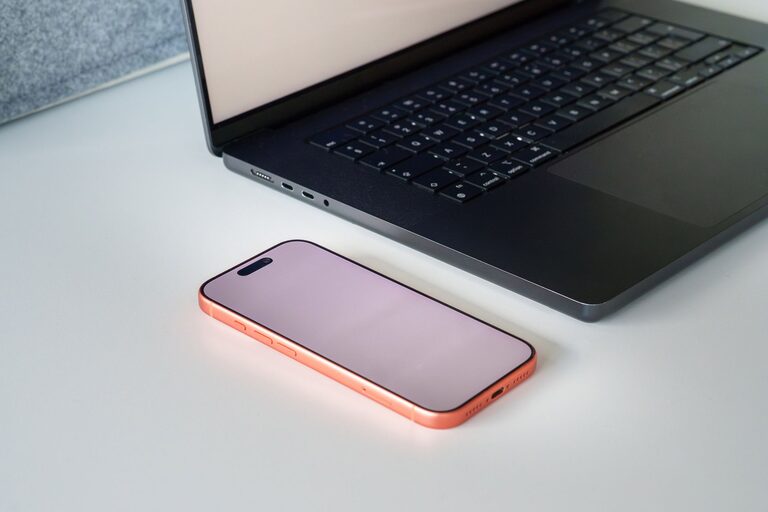
Bright reflections on a tablet or laptop can make the screen difficult to see. Glare often comes from windows, overhead lights, desk lamps, or glossy display surfaces. It can also make text appear less clear and encourage uncomfortable viewing positions.
The good news is that you can reduce glare with a few simple changes. Adjusting your screen, improving the lighting around it, and using the right accessories can make a noticeable difference.
One of the easiest ways to reduce glare is to change the angle of the device. Reflections appear when light bounces directly from a surface into your eyes. A small adjustment can redirect that light.
Try these changes:
– Tilt the screen slightly forward or backward.
– Turn the device a few degrees to the left or right.
– Move the laptop or tablet away from a direct light source.
– Position the screen so windows are beside you rather than directly in front of or behind you.
– Raise or lower the screen until reflections are less noticeable.
When using a laptop, adjust the display angle before changing your sitting position. With a tablet, a stand can help keep the screen at a steady angle instead of forcing you to hold it flat.
A stand or riser makes it easier to place the screen at a comfortable angle. It can also help keep the device away from reflections caused by a desk surface.
Choose a stand that:
– Holds the device securely
– Allows angle adjustments
– Does not block ventilation on a laptop
– Folds easily for storage or travel
– Matches the size and weight of your device
A simple stand may be enough to improve visibility without changing the room.
Screen glare is often caused by the surrounding environment rather than the display itself. Look around your workspace and identify the brightest light sources.
Windows are a common source of glare. If possible, place your desk perpendicular to a window. This arrangement provides natural light without sending a direct reflection toward the screen.
You can also use:
– Curtains or blinds
– Light-filtering shades
– Adjustable shutters
– A desk position farther from the window
You do not always need to make the room dark. Soft, even lighting is usually more useful than a bright beam shining directly onto the display.
Desk lamps and ceiling lights can reflect from glossy screens. Move lamps to the side, lower their brightness, or point them toward a wall for indirect lighting.
If overhead lights create a bright spot on the display, try turning off one light, using a lower-wattage bulb, or adding a shaded lamp nearby. The goal is to create balanced lighting around the screen.
A screen that is much brighter or darker than the room can be harder to view. Adjust the brightness so the display looks clear without appearing to glow.
During the day, a moderately bright setting may work best. In a dim room, reduce the brightness to avoid creating a sharp contrast between the screen and its surroundings.
Many laptops and tablets include automatic brightness controls. These can be convenient, but they may not always respond perfectly to your environment. If the screen keeps changing unexpectedly, try turning automatic brightness off and adjusting it manually.
Dark mode can reduce the amount of bright white on the screen, especially in low-light settings. It may be useful for reading, browsing, or working with certain apps.
However, dark mode does not remove reflections from the screen surface. If glare is caused by a window or lamp, changing the display theme alone will not solve the problem. Treat it as one part of a broader setup.
Dust, fingerprints, and smudges can scatter light and make reflections look worse. A clean screen usually appears sharper and easier to read.
To clean a tablet or laptop display:
Avoid paper towels, rough fabrics, and strong household cleaners. These can leave residue or damage the screen’s protective coating.
An anti-glare screen protector adds a matte layer over the display. Instead of reflecting light like a mirror, the surface scatters reflections across a wider area, making them less distracting.
Screen protectors can be useful for:
– Tablets used near windows
– Laptops used in bright offices
– Devices used outdoors
– Glossy displays with strong reflections
– Shared workspaces where lighting cannot be changed
Before buying one, check the exact model and screen size. A poorly fitted protector may cover the camera, interfere with touch sensitivity, or create bubbles.
Matte protectors can slightly change the appearance of the display. Some may make images look less glossy or introduce a faint grain effect. If color accuracy is important for your work, compare product reviews and specifications before choosing one.
If you are buying a new laptop, compare matte and glossy screens. Matte displays are designed to reduce reflections and may be more comfortable in bright environments.
Glossy screens often provide vivid colors and strong contrast, but they can reflect windows and lights more clearly. Matte screens may be a better choice for offices, classrooms, travel, or outdoor use.
When comparing devices, view the screen under different lighting conditions if possible. A display that looks excellent in a dim store may behave differently near a sunny window.
Privacy filters are designed to narrow the viewing angle of a laptop screen. They can also reduce some reflections, depending on the product.
These filters are especially useful when working in public places such as cafés, libraries, or shared offices. Keep in mind that they may make the screen appear darker when viewed from the side or at an angle. You may need to adjust the brightness or screen position after installing one.
Glare is not the only reason a screen may be difficult to read. Small text, low contrast, and crowded layouts can add to the problem.
Try these settings:
– Increase text size
– Use display scaling
– Turn on high-contrast options when helpful
– Choose a clear, readable font
– Increase the size of icons and menus
– Use browser zoom for difficult websites
– Reduce visual clutter in apps
These changes can make content easier to see without requiring you to move closer to the screen.
Even with good lighting and a glare-free setup, long periods of screen use can become tiring. Include short breaks in your routine by looking away from the screen, standing up, or switching tasks.
You can also vary how you use the device. For example, listen to audio instead of reading when practical, or move between a laptop and a larger external display.
For the best results, combine several methods:
– Place the screen perpendicular to windows.
– Use soft, indirect room lighting.
– Clean the display regularly.
– Adjust brightness to match the room.
– Raise the screen to a comfortable angle.
– Add a matte protector if reflections remain.
– Increase text size and display scaling.
– Recheck the setup when the time of day changes.
Reducing glare does not require an expensive upgrade. In many cases, moving the device, changing a lamp, or cleaning the screen can make the biggest difference. If those steps are not enough, an anti-glare protector or matte display can provide another layer of protection from distracting reflections.
