
 11 August 2026
 Share
Share
1
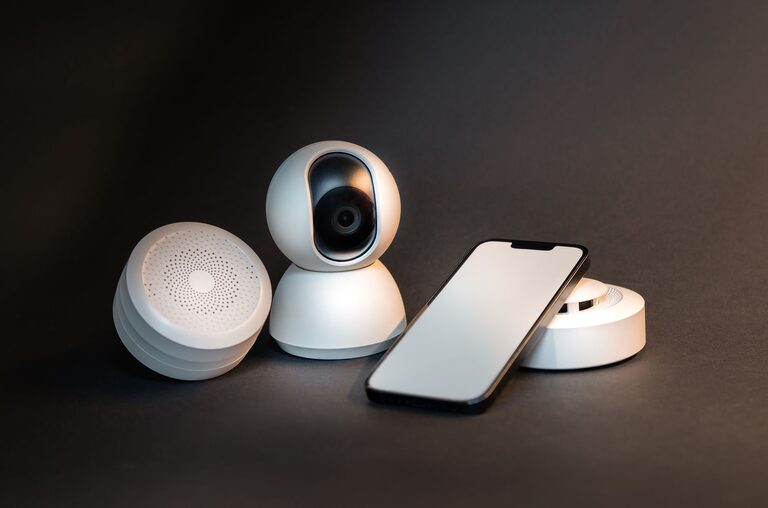
Smart home reminders can make everyday tasks easier to remember. Whether you need to take out the trash, check the laundry, water indoor plants, or prepare for an appointment, a connected device can provide a timely alert.
The best reminder system is simple, reliable, and easy to update. You do not need advanced technical skills or a large collection of smart devices. A phone, smart speaker, or connected display may be enough to get started.
This guide explains how to plan, create, test, and improve smart home reminders.
Smart home reminders are scheduled alerts created through a voice assistant, mobile app, smart speaker, connected display, or home automation platform. They can notify you at a specific time, after a certain period, or when an activity occurs.
For example, you might create reminders to:
– Put the recycling bin outside every Wednesday evening
– Check the oven after cooking
– Start a bedtime routine at 9:30 p.m.
– Replace an air filter every few months
– Bring in packages after receiving a delivery alert
– Turn off outdoor lights before going to bed
Some reminders are simple alerts. Others can be part of a routine that combines several actions, such as turning off lights, adjusting the thermostat, and playing a quiet reminder message.
Start by deciding which device or app will deliver your reminders. Many households already have a suitable option.
Common choices include:
– A smartphone reminder or calendar app
– A smart speaker with a voice assistant
– A connected display in the kitchen or hallway
– A smartwatch paired with a phone
– A home automation app
– A family task or shared calendar app
Choose a platform that you use regularly and that is easy to access. A reminder is less useful if it appears on a device you rarely check.
If several people need to see the same reminder, a shared calendar or connected display may work better than a personal phone alert. For reminders tied to a specific room, a smart speaker in that area may be more convenient.
Before creating reminders, list the tasks you want to manage. Start with activities that are easy to forget or that follow a regular schedule.
Organize them into categories such as:
These may include:
– Locking doors at night
– Feeding pets
– Checking the mailbox
– Taking medication-free household items, such as vitamins or pet supplies, if relevant to your routine
– Turning off selected lights
Examples include:
– Taking out the trash
– Cleaning a room
– Checking the refrigerator
– Watering plants
– Reviewing the family schedule
These might include:
– Replacing batteries
– Ordering household supplies
– Cleaning a filter
– Checking smoke detector batteries
– Preparing for guests
Avoid adding too many reminders at once. Begin with three to five useful tasks. Once the system feels natural, add more as needed.
A good reminder includes a clear time, date, and delivery location. Think about when you are most likely to complete the task.
For example, a reminder to take the trash outside may be more useful after dinner than early in the morning. A reminder to check the laundry may work best near the end of a washing cycle.
Consider these questions:
– Does the task happen at a fixed time?
– Is it connected to a specific day of the week?
– Should the reminder repeat?
– Will you be at home when the alert appears?
– Should another household member receive it?
– Would a voice announcement, phone notification, or display message work best?
You can also use multiple alerts for important routines. For example, create one reminder to start preparing for an activity and another to leave the house.
The exact steps vary by platform, but most systems follow a similar process.
Many voice assistants also let you create reminders by speaking. A useful command follows this pattern:
“Remind me to [task] at [time] on [day].”
Use specific wording. “Check the laundry at 7 p.m.” is clearer than “Laundry.” A short, action-focused description makes the alert easier to understand.
Repeating reminders are useful for routines that follow a predictable schedule. When setting one up, choose the correct frequency:
– Every day
– Weekdays only
– Every Monday
– Every two weeks
– Monthly
– Annually
Check whether the system allows a custom schedule. Some tasks may happen on the first Saturday of each month rather than on a specific calendar date.
Be careful with reminders that repeat forever. A task may change over time, and an outdated alert can become annoying. Review repeating reminders occasionally and delete those you no longer need.
A routine can combine a reminder with other smart home actions. For example, a “good night” routine could:
– Turn off selected lights
– Lock compatible doors
– Adjust connected devices
– Set an alarm
– Announce a reminder to check the kitchen
To create a routine:
Keep routines simple at first. If too many actions are included, it may be harder to identify a problem when something does not work.
Testing helps confirm that alerts appear at the right time and on the correct device. Set a temporary reminder for a few minutes in the future and check what happens.
During the test, confirm:
– The reminder uses the correct wording
– The alert is loud or visible enough
– The notification reaches the intended person
– The time zone and clock settings are correct
– Repeating reminders use the right days
– Connected devices respond as expected
If you rely on a smart speaker, make sure it is connected to power and the internet. If you use a phone, check that notifications are enabled for the relevant app.
After using your reminders for a week or two, review what is working. You may discover that some alerts arrive too early, too late, or too often.
Make adjustments such as:
– Changing the time
– Shortening the reminder text
– Moving alerts to another device
– Combining related tasks
– Removing reminders that are no longer useful
– Adding a second alert for tasks that are often missed
Avoid creating reminders for every small activity. Too many alerts can lead to notification fatigue, making important reminders easier to ignore.
Use these practices to keep your system useful:
– Give each reminder a clear action
– Use consistent names for routines
– Place smart speakers where alerts can be heard
– Keep mobile apps updated
– Check device volume settings
– Review shared reminders with household members
– Use a backup calendar for important events
– Protect accounts with strong passwords and account security features
It is also wise to review the privacy settings of your smart home platform. Check which devices can access your calendar, location, microphone, or shared information. Use only the features you need.
Smart home reminders are most effective when they support routines you already have. Start with a few practical tasks, choose a platform you use often, and create alerts with clear wording and realistic timing.
Once your basic reminders work well, you can add repeating schedules, shared notifications, and simple routines. With regular testing and occasional cleanup, a smart home reminder system can help keep daily tasks organized without adding unnecessary complexity.
