
 11 August 2026
 Share
Share
1
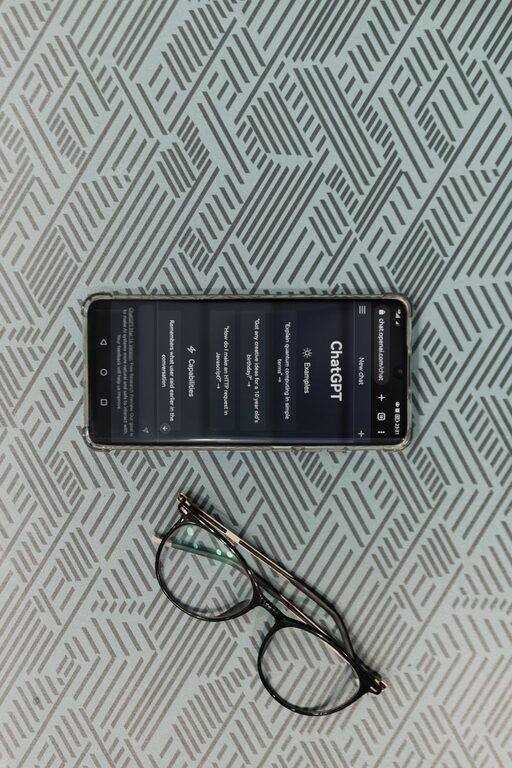
Reading on a smartphone can be convenient, but small text, bright screens, and crowded layouts may make it less enjoyable. The good news is that most phones include simple settings that can improve the reading experience in just a few minutes.
You do not need to change every option. Start with the adjustments that solve your biggest challenge, then test the phone by reading a text message, email, or web page. Settings can usually be changed again at any time.
Small text is one of the most common reasons people find phone reading uncomfortable. Increasing the text size can make messages, menus, and many apps easier to read.
On most phones, look for a setting called Text Size, Font Size, or Display Size.
Open:
Settings > Display & Brightness > Text Size
Move the slider to the right to make the text larger. You can also turn on Larger Text for more size choices.
Open:
Settings > Display > Font Size
or
Settings > Accessibility > Text and display > Font size
The exact names may vary by phone brand, but the setting is usually found under Display or Accessibility.
Choose a size that feels clear without making every screen look crowded. If text becomes too large, some buttons or words may be cut off. Try the next smaller option if that happens.
Bold text can be easier to notice and follow, especially in menus and messages.
On an iPhone, look for:
Settings > Display & Brightness > Bold Text
On many Android phones, the option may appear under:
Settings > Accessibility > Text and display > Bold text
Bold text can improve visibility across the phone, but it may not affect every app. If you do not see a change in a particular app, check that app’s own settings.
A screen that is too bright can feel harsh, while a screen that is too dim can make text difficult to see. The best brightness level depends on the room and the time of day.
To adjust brightness:
You can also turn on Auto-Brightness or Adaptive Brightness. This allows the phone to adjust the screen based on the surrounding light.
Automatic brightness is useful when moving between indoor and outdoor spaces. However, you can still adjust it manually whenever needed.
Many phones offer Dark Mode, which uses a darker background with lighter text. Others prefer Light Mode, which uses dark text on a light background.
To find this option, look under:
Settings > Display & Brightness
or
Settings > Display
Try both modes while reading for several minutes. Your preference may depend on the room, the time of day, and the app you are using.
Some websites and apps have their own appearance settings. If the phone is in Dark Mode but an app remains bright, open the app’s settings and look for options such as:
– Theme
– Appearance
– Reading mode
– Display
– Night mode
Many smartphones include a feature that changes the screen’s color tone in the evening. It may be called Night Shift, Night Light, Eye Comfort, or Blue Light Filter.
These features usually make the screen appear warmer, with less blue coloring. This can make evening reading feel more comfortable for some people.
You can often schedule the feature to turn on automatically at sunset or at a time you choose. To find it, search your phone’s Settings app for:
– Night Shift
– Night Light
– Blue light
– Eye comfort
This setting changes the color of the screen, not the size of the text. You may want to use it together with a larger font.
A busy screen can make it harder to focus on an article or message. Many apps include reading views that remove extra buttons, advertisements, and page elements.
When viewing a web page, look for a button in the browser’s address bar that may offer:
– Reader view
– Reading mode
– Simplified view
– Text-only view
Reader views are especially useful for long articles. They often present the main text in a cleaner format and may let you choose the font size, background color, or spacing.
You can also reduce clutter by closing unused browser tabs and removing apps from the home screen that you rarely use.
Contrast describes the difference between text and its background. Strong contrast can help words stand out more clearly.
On an iPhone, look under:
Settings > Accessibility > Display & Text Size
You may see options such as:
– Increase Contrast
– Reduce Transparency
– Bold Text
– Differentiate Without Color
On Android phones, search Settings for Contrast, Color correction, or Accessibility. Available options vary by model.
Use these settings carefully. Higher contrast can make text clearer, but some people may prefer a softer appearance. Test the changes with both black text on a white background and white text on a dark background.
Reading often involves tapping small links, buttons, or menus. If these controls are difficult to select, check the phone’s touch and accessibility options.
Useful settings may include:
– Touch and hold delay
– Touch accommodations
– Ignore repeated touches
– Interaction controls
– Larger keyboard keys
On some phones, turning on a larger display size also increases the size of buttons and other controls. You can also rotate the phone sideways to use landscape mode, which may provide more room for text and buttons.
Smartphones can read selected text aloud. This can be useful for long articles, instructions, or messages.
On an iPhone, features such as Speak Screen or Speak Selection can be found under:
Settings > Accessibility > Spoken Content
On Android, look for:
Settings > Accessibility > Select to Speak
or
Text to speech
The names and locations may differ between devices. Once enabled, you can often select text and ask the phone to read it aloud. Some phones also allow you to change the reading speed and voice.
Voice features are not only for accessibility. They can be a convenient way to listen while resting your eyes or doing a simple task.
Changing too many settings at once can make it difficult to know which adjustment helped. Instead, try this simple process:
Your ideal setup may change during the day. A brighter screen may work well outdoors, while a warmer display and lower brightness may feel better in the evening.
The right settings can make smartphone reading easier, but small habits also help. Hold the phone at a comfortable distance, clean the screen regularly, and take short breaks during long reading sessions. If an app offers adjustable text size or a reader view, use those tools instead of struggling with the default layout.
With a few simple changes, your smartphone can become a more comfortable tool for reading messages, articles, books, and everyday information.
